Canvas Overview
Canvas is Omma's collaborative 2D design surface with AI generation and realtime collaboration.
What is Canvas?#
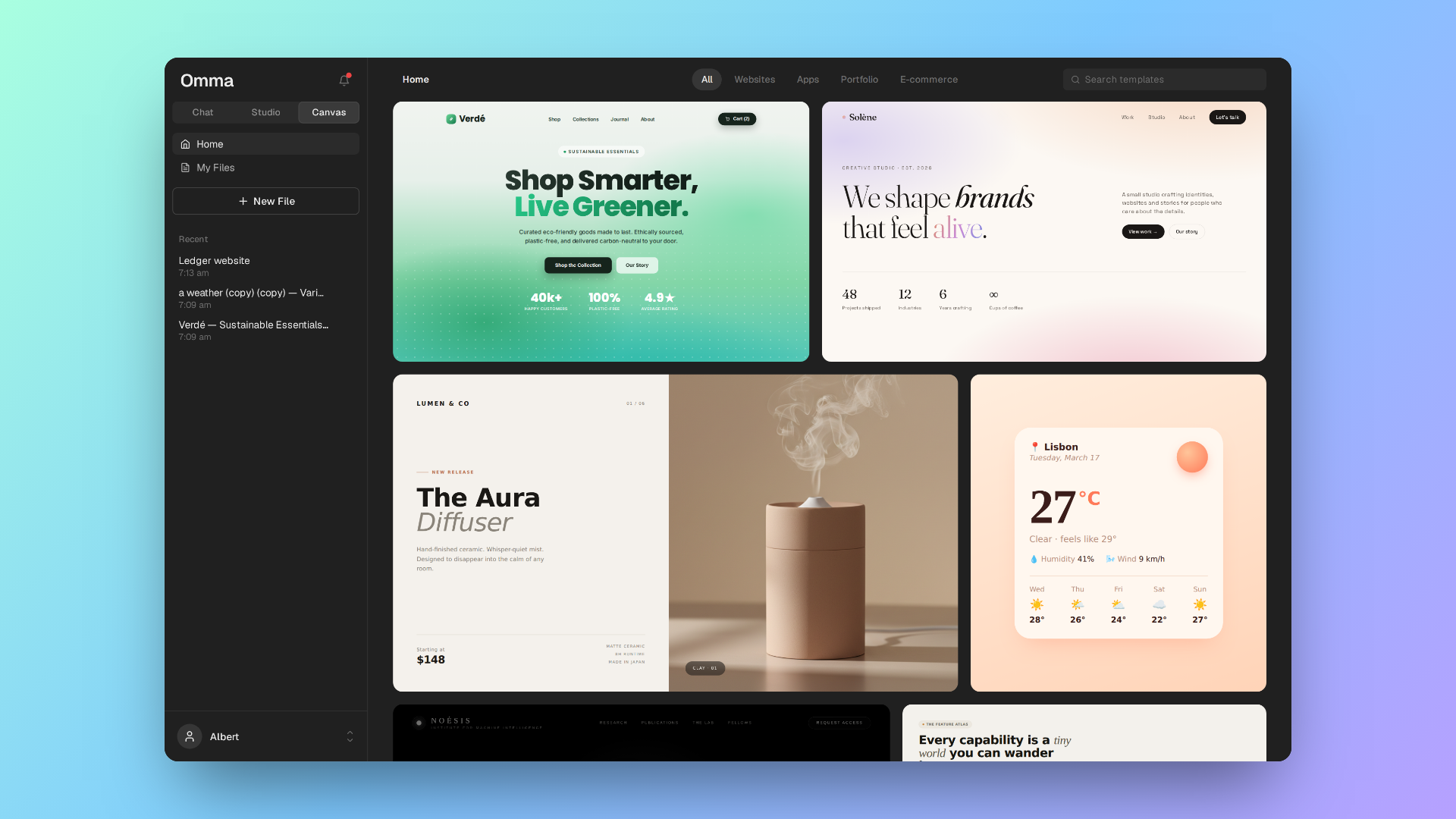
Canvas is Omma's infinite, collaborative canvas for building real sites, web apps, and more with AI. Its defining capability is massive parallel agent generation: trigger up to 100 agents at once on a single canvas, each building its own page in parallel.
What Canvas produces is real HTML/CSS/JS code — not a prototype. Every frame is a working page you can edit three ways: by prompting the AI agents, directly in the code, or through the visual inspector. Canvas also supports realtime multiplayer collaboration, public share links, and version history.
Open Canvas from the app switcher, or use the New Canvas quick action under the Chat prompt.
Objects you can place#
- Frames — Full HTML/CSS documents rendered as live, interactive previews. A frame is a complete webpage you can generate, edit, and even play (for animations). This is what the AI produces when you ask it to design a screen, landing page, or app.
- Sections — Lightweight containers that group objects together for organization. Move a section and everything inside it moves with it; delete it and its contents go too. Use sections to keep dense canvases tidy.
- Images — Raster graphics (PNG, JPEG, WebP, and more) with border and corner-radius controls.
- Video — Video files with playback controls; one frame or video plays at a time.
- Audio — Audio files with inline playback.
- Text — Editable text blocks with full typography controls (font, size, weight, alignment, spacing).
- Shapes & vectors — Rectangles, ellipses, stars, polygons, lines, and pen-drawn paths, with solid or gradient fills, strokes, and shadows.
A typical Canvas workflow#
Start from a template or a blank canvas
Open the Canvas home to browse the template gallery, or create a blank file. Templates are ready-made frames you can drop in and edit.
Describe what you want
Use the AI chat panel to generate frames — a single design, several variations at once, or edits to a frame you've selected. See Designing with AI.
Refine on the canvas
Move, resize, restack, and group objects. Drop into a frame to tweak individual HTML elements with the inspector. See Editing & Tools.
Collaborate and share
Invite teammates as editors or viewers, or turn on a public link. Everyone sees live cursors and edits in real time. See Collaboration & Sharing.
Frames are real, editable pages#
Because frames are real HTML/CSS/JS documents — not flat mockups — everything you build is production code you fully control.
Three ways to edit any frame:
- Prompt the agents — describe a change in the chat and the AI edits the frame in place.
- Edit the code directly — open the frame's code and change it by hand.
- Use the visual inspector — select elements inside a frame and adjust layout, type, color, and effects without touching code.
Every frame is independent:
- Its own scope — the AI keeps each frame's conversation separate, so edits to one don't bleed into the others.
- Its own version history — review and roll back changes per frame.
- Publish independently — give any single frame its own public URL.
Frames can also play their CSS/JS animations, and you can import assets (images, video, audio, 3D models) so the AI embeds real content in the design.
Send a frame to Omma's main Chat app when you want more control over going live — custom domains, site settings, SEO metadata, and more.
Navigating the canvas#
- Pan — Hold space and drag, use the Pan tool (
H), or shift-scroll. - Zoom —
Cmd/Ctrl-scroll or pinch on a trackpad (from 0.1× to 64×). - Performance — While you pan and zoom, live frames are swapped for crisp snapshots so the canvas stays smooth even with many frames, then snap back to fully interactive when you stop.