Studio Overview
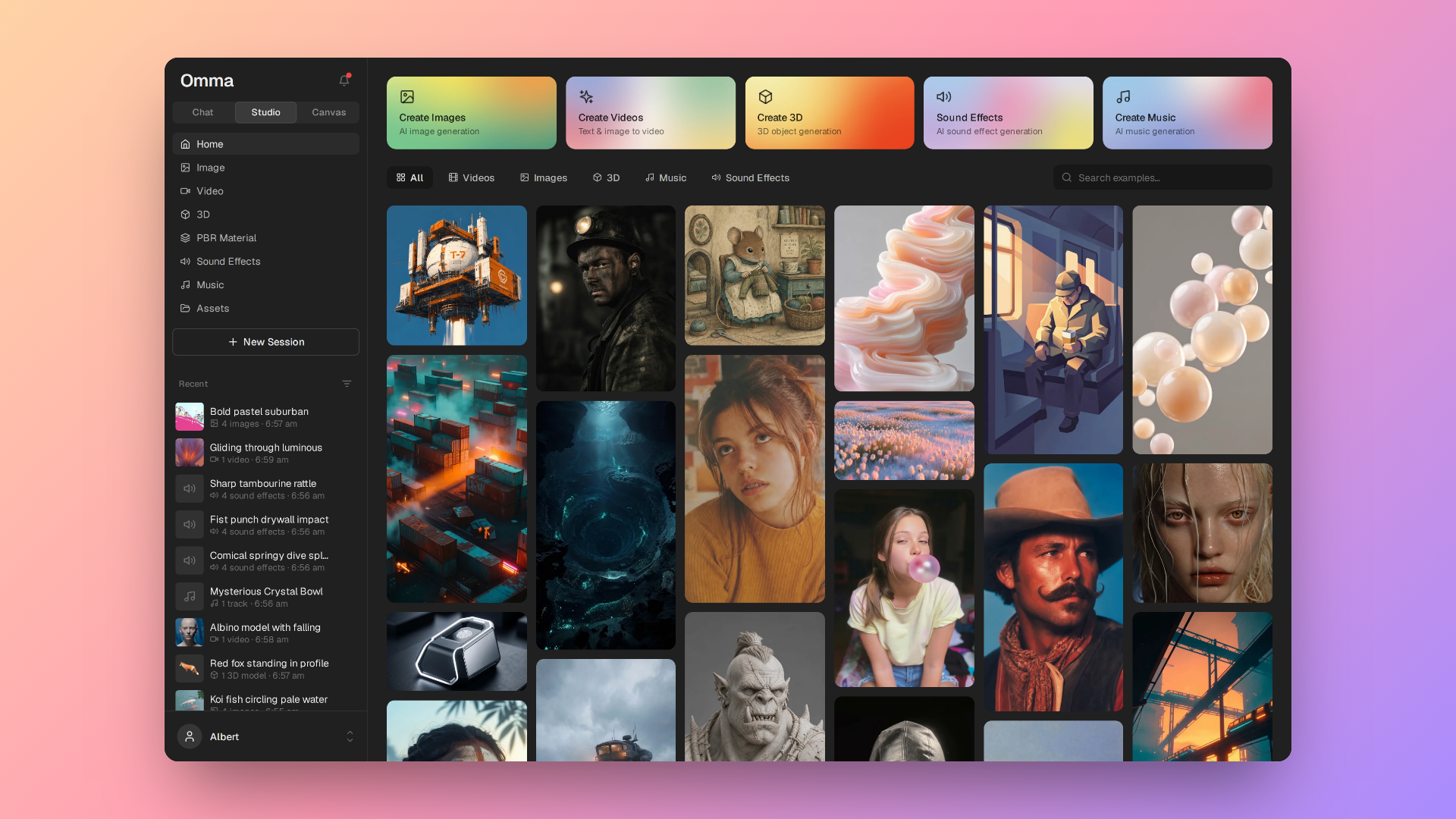
Studio is Omma's multi-modal AI generation suite for images, video, 3D models, materials, music, and sound effects.
What is Studio?#
Studio is Omma's dedicated workspace for generating media with AI. Choose a modality, write a prompt, pick a model, adjust a few settings, and generate. Everything you create is saved to a shared asset library you can reuse anywhere in Omma.
Open Studio from the app switcher, or use the New Studio quick action under the Chat prompt.
Modalities#
Image
Text-to-image and reference-image editing, up to 4K.
Video
Text-to-video and image-to-video with frame control.
3D Models
Text- or image-to-3D with rigging and animation, exported as optimized GLB.
PBR Materials
PBR texture sets for use in 3D scenes.
Music
Royalty-free background music from a prompt.
Sound Effects
One-shot or looping SFX from a prompt.
How Studio is organized#
Studio groups your work into sessions, each holding the generations for one modality:
- Sessions — A session is a workspace for one type of generation (image, video, 3D, material, music, or sound effects). The first time you generate, the session is auto-named from your prompt; you can rename it anytime. Pin sessions to keep them at the top of the sidebar.
- Batches — Each generation produces a batch of one or more outputs (for example, four image variations from a single prompt).
- Assets — Every finished output is saved as an asset with its prompt, model, and settings, and added to your Asset Library.
Generation runs in the background#
Image generation with fast models often returns instantly. Video, 3D, material, and audio generations are durable jobs — they keep running on Omma's servers even if you close the tab or navigate away.
Submit a video or 3D generation, then switch apps, refresh, or close the browser. When you return to the session, in-progress jobs reappear with their live status and finish on their own. You don't need to keep the tab open.
While a job runs you'll see a progress indicator and, for queued models, your position in the queue. Finished assets drop into the batch automatically.
The Studio home#
The Studio home is your launch pad and inspiration feed:
- Quick-create tiles for each modality (Create Images, Create Videos, Create 3D, Create Music, Sound Effects)
- A Discover gallery of curated examples — click any example to preview it, then Try this to pre-fill the prompt and model in the create view
- Recent shelves of your latest videos, 3D models, and audio
Reusing what you generate#
Studio assets aren't trapped in Studio:
- Download any asset (images as PNG/WebP/JPEG, video as MP4, 3D as GLB, materials as texture maps, audio as MP3)
- Reference in Chat — pull a generated image into a Chat message as a visual reference for code generation
- Drop into Canvas — use generated images, video, audio, and 3D models directly in a Canvas design
Credits#
Every generation consumes credits. Cost depends on the modality, model, and settings (resolution, duration, quality). See Credits & Billing for details.